 Humelodica
How do I fix the notes after I hum?
On your notes, set Auto-tune to In key and Rhythm to On beat to tidy every note at once. To fix one note, press and hold it, then drag it to move it or drag its ends to change its length; the undo arrow takes back any change.
1Open your notes
Your notes open as soon as you stop humming. For a melody that’s already in a song, tap Edit on the song, then double-tap your melody.
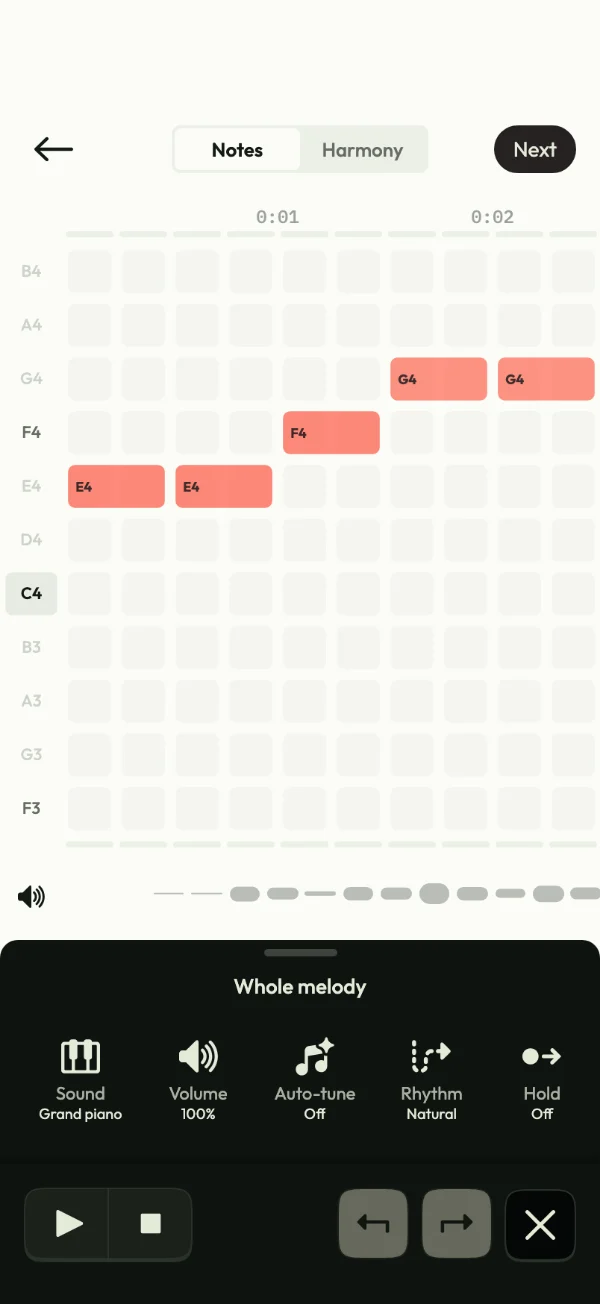
2Put every note in key
Optional: Improve puts your notes in key and on the beat. With nothing selected, tap Auto-tune and choose In key: every note into the key, the way you leaned.
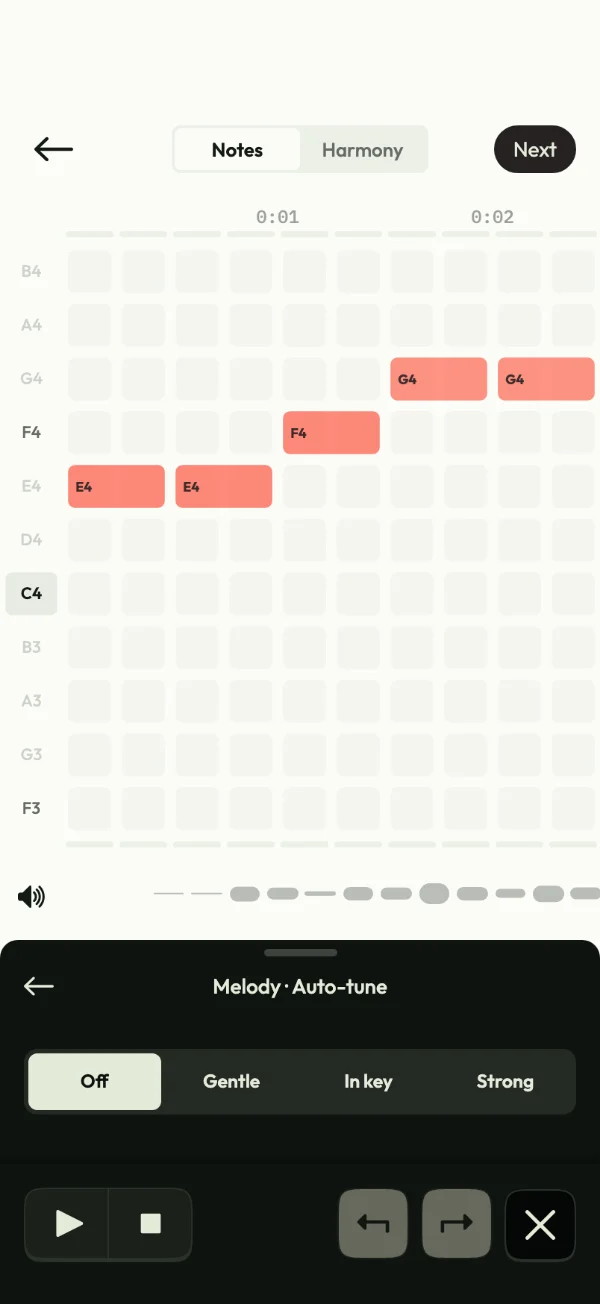
3Put every note on the beat
Tap Rhythm and choose On beat: timing locked to the beat — your notes untouched.
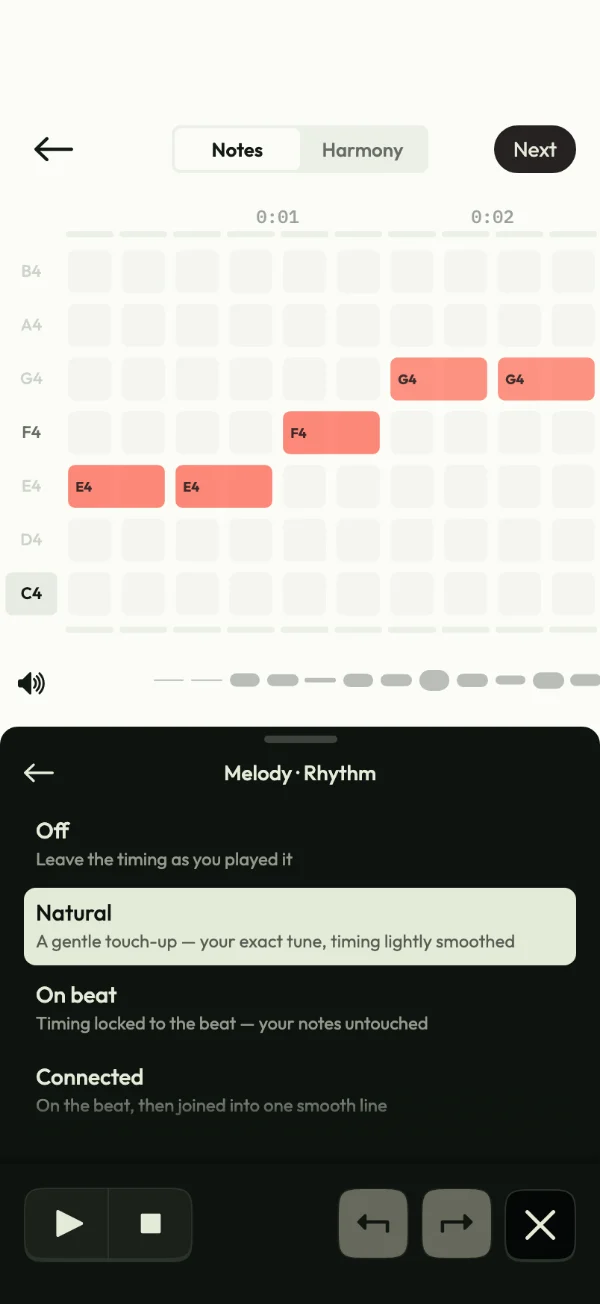
4Select a note
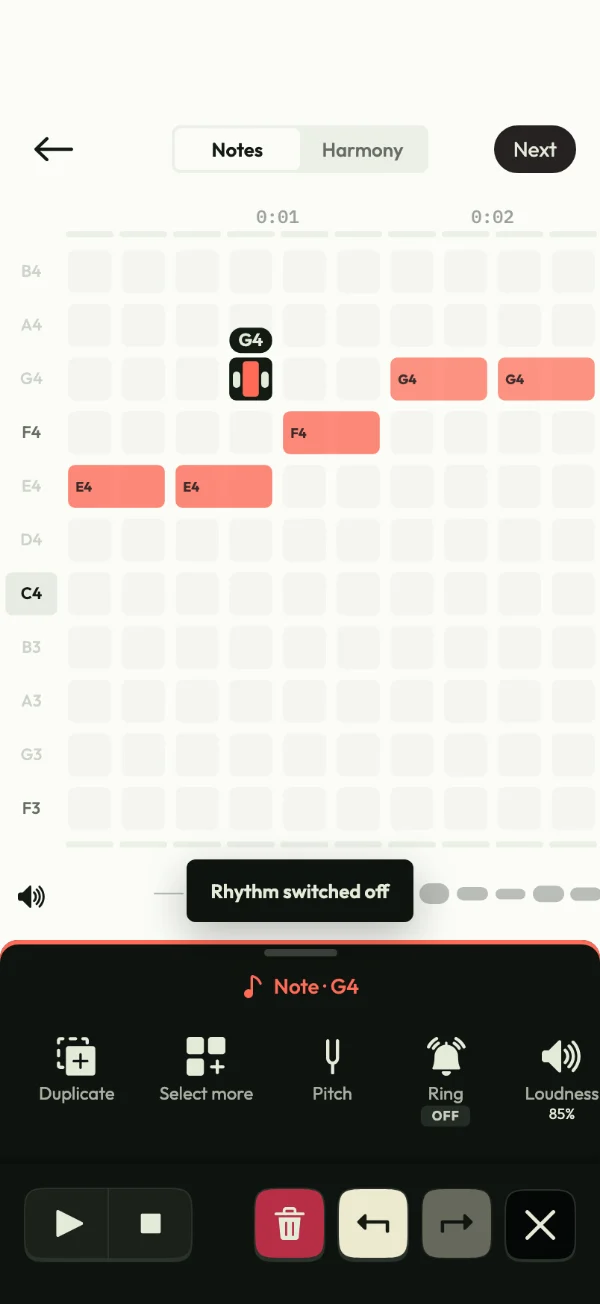
Press and hold a note to select it. Its menu opens, with Duplicate, Select more, Pitch and Loudness.
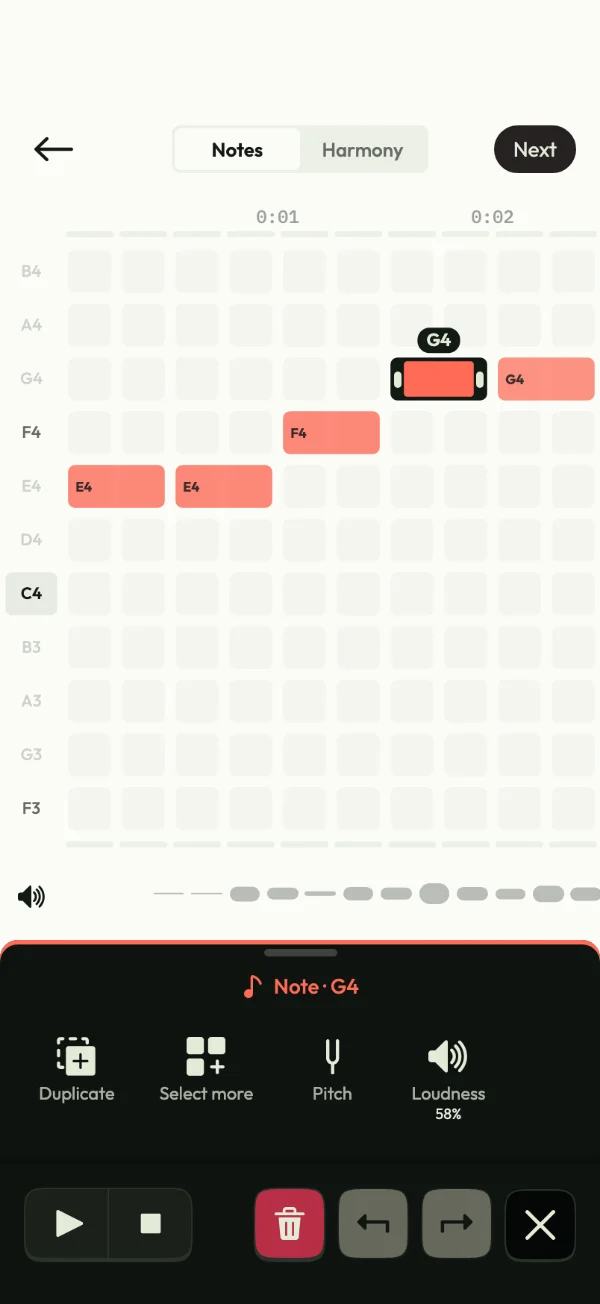
5Move it, or change its length
Drag a selected note up or down to change its pitch, or sideways to move it in time. Drag its left or right end to make it shorter or longer.
6Add a note, or delete one
Press and hold an empty square to add a note there; keep holding and drag to stretch it. To delete a note, select it and tap the bin at the bottom.
7Undo a change
Tap the undo arrow in the bottom bar to take back your last change, and the redo arrow beside it to put it back.
Good to know
- If Auto-tune or Rhythm is on, changing a note by hand switches them off and keeps every note where you see it. Tap them again to tidy the notes as they are now.
- A quick tap on the grid moves the play marker there; it doesn’t add a note.
- When you’re happy, tap Next to make it a song.